Switching from Airtable? Import your data into Retable in minutes —fast and free.
Learn More →.avif)

January 21, 2026
Sales & Customers
Customer relationship management
Manage customer relationships seamlessly with Retable's CRM Spreadsheet Template! Organize contacts, track interactions, and boost customer engagement—all in one place!
Customer relationship management (CRM) spreadsheet template
📌 To copy and customize the customer relationship management (CRM) spreadsheet template to your own Retable dashboard, click the "Copy to workspace" button in the upper right corner of the template!
The CRM spreadsheet template is a comprehensive, structured tool for organizing and managing customer relationships. This template includes four key tables, each designed to handle essential aspects of CRM, from contact management to interaction tracking.
- Contacts table: This table acts as a centralized repository for all customer contact details, including names, emails, phone numbers, and notes on interactions. By keeping all contact information organized and accessible, this table facilitates effective communication and strengthens customer relationships.
- Accounts table: This table provides a comprehensive view of each company or client account. It includes key information such as account names, contact details, industry, and account status. With all account information in one place, this table enables efficient account management and tracking.
- Deals table: This table serves as a structured hub for all deals in progress, capturing essential details such as deal names, values, stages, and close dates. By organizing deal information, this table helps teams prioritize opportunities and track the progress of each deal to closure.
- Leads table: This table acts as a centralized resource for managing potential customers or leads. It includes details like lead names, sources, contact information, and statuses. By organizing lead data, this table supports lead tracking and conversion efforts, helping teams grow the customer base effectively.
Contacts table
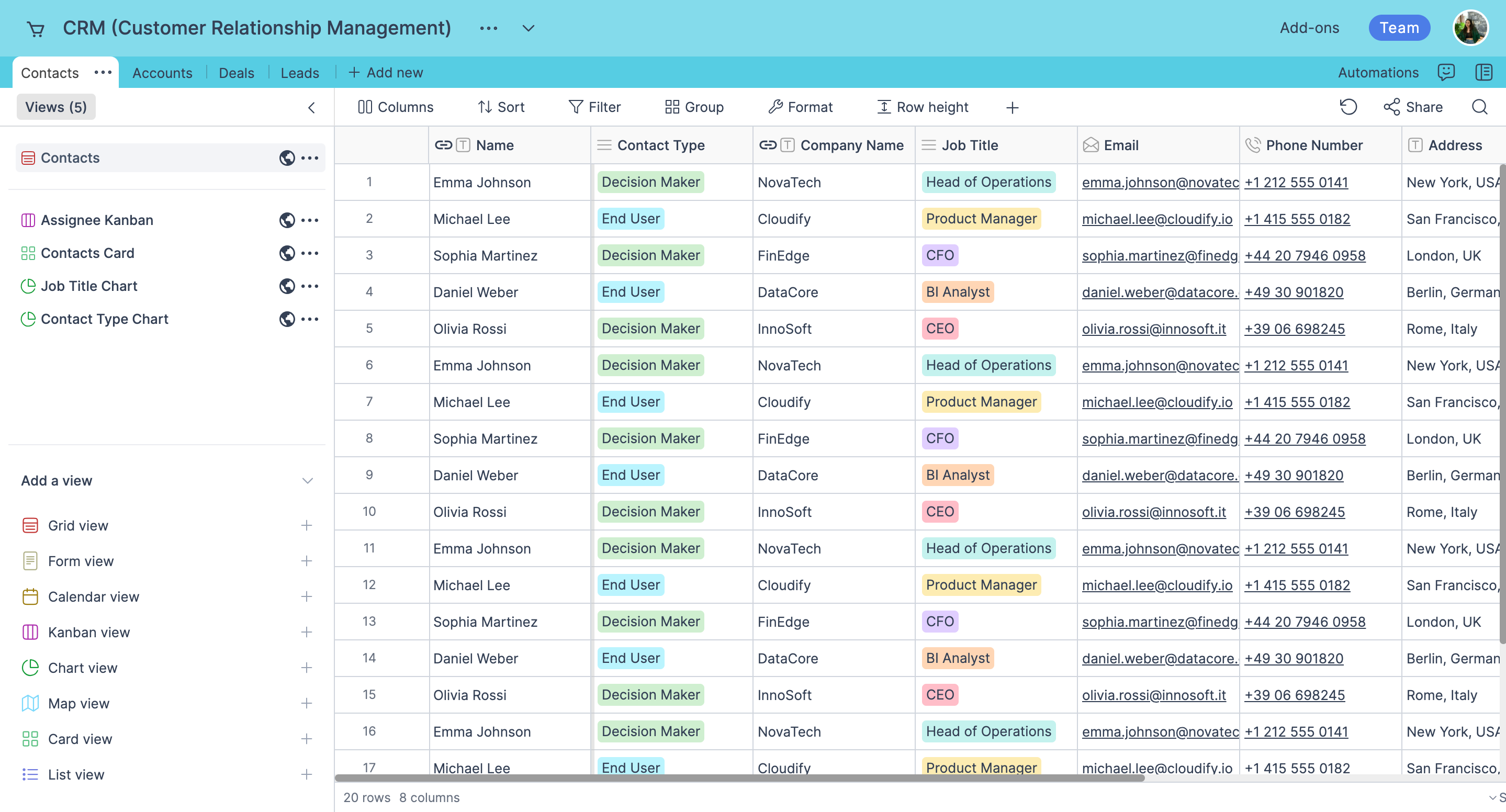
Columns of the contacts table:
- Name: It's a single-line text column. This column indicates the full name of the contacts.
- Contact type: It's a select column type. It indicates the type of the related contact - decision maker or end user. You can add more contact type options to this column.
- Company name: It's a single-line text column. This column indicates the name of the company.
- Job title: It's a select column type. It indicates the title of the related contact . You can add more title options to this column.
- E-mail: It's an email column type. The emails you write in this column are clickable. So when you click, your email provider opens and you can easily send emails.
- Phone number: It's a phone number column type. This column indicates the phone numbers of the contacts.
- Address: It's a geolocation column type. This column indicates the address of the contacts. You can select locations from the map by clicking on the cell.
- Assignee: It's a collaborator column type. You can assign relevant contacts to your teammates via this column.
Accounts table
Columns of the accounts table:
- Company name: It's a single-line text column. This column indicates the name of the company.
- Primary contact: It's a single-line text column. This column indicates the name of the primary contacts.
- Status: It's a select column type. It indicates the status of the accounts. You can add more status options.
- Billing cycle: It's a select column type. It indicates the billing cycle of the accounts. You can add more options to this column.
- Account manager: It's a collaborator column type. You can assign your teammates as the account manager for the relevant accounts via this column.
- Sales manager: It's a collaborator column type. You can assign relevant accounts to your teammates via this column.
Deals table
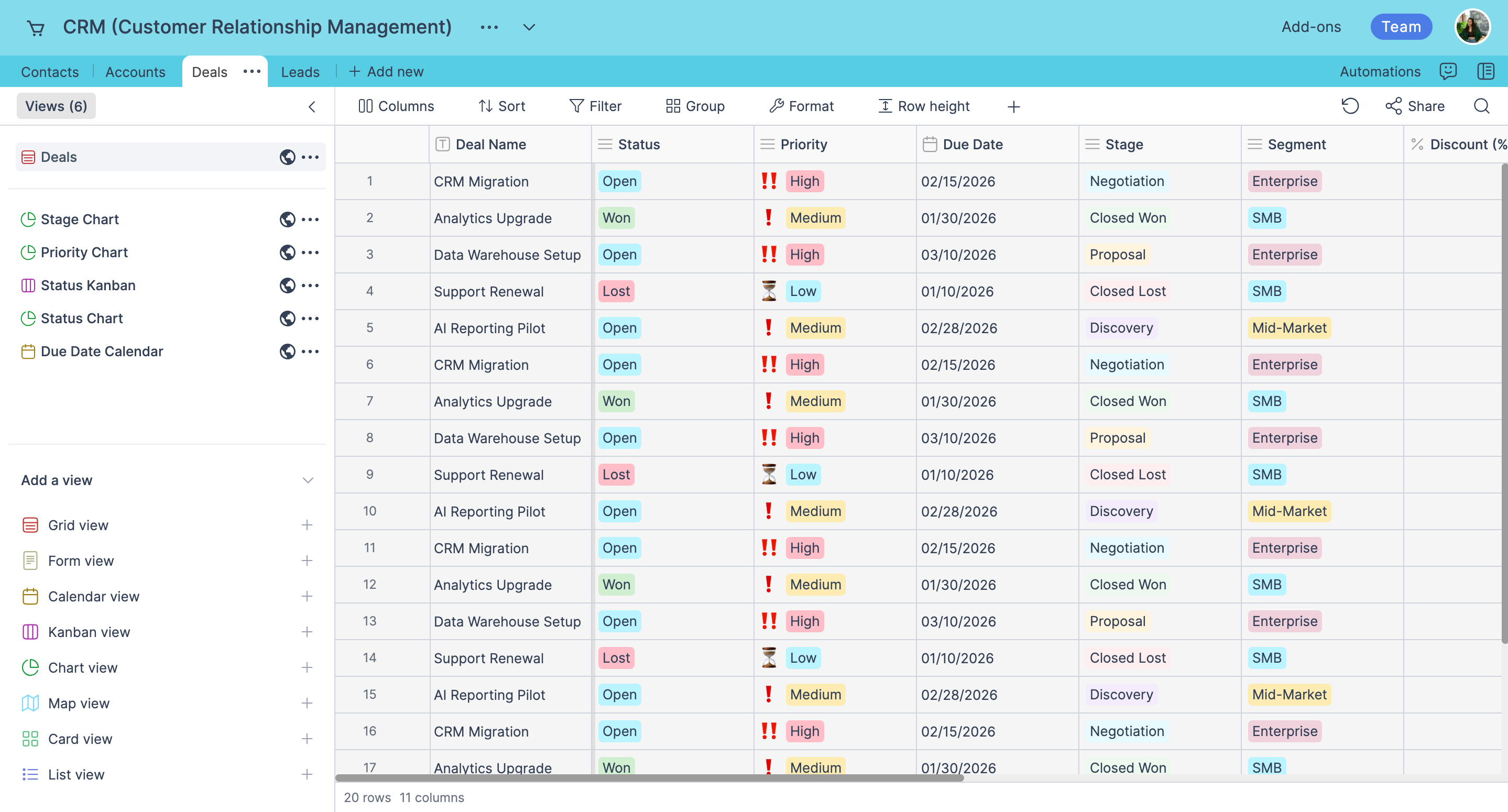
Columns of the deals table:
- Deal name: It's a single-line text column. This column indicates the name of the deal.
- Status: It's a select column type. It indicates the status of the deals. You can add more status options.
- Priority: It's a select column type. It indicates the priority of the deals. You can add more priority options.
- Due date: It's a calendar column type. It indicates the deadline of the deal. You can customize the date format of this column.
- Stage: It's a select column type. It indicates the stage of the deals. You can add more stage options.
- Segment: It's a select column type. It indicates the segment of the company. You can add more segment options.
- Discount: It's a percent column type. When you enter a number in this column, Retable automatically adds percent (%) icon. You can customize the placement of the percent icon.
- Probability: It's a percent column type. When you enter a number in this column, Retable automatically adds a percent (%) icon and shows it on a progress bar.
- Deal value: It's a currency column type. When you enter a price in this column, Retable autoomatically adds your currency symbol. You can customize your currency symbol and it's placement.
- Service/Product: It's a multi-select column type. It indicates the services/products provided for the related deal.
- Assignee: It's a collaborator column type. You can assign relevant deals to your teammates via this column.
Leads table
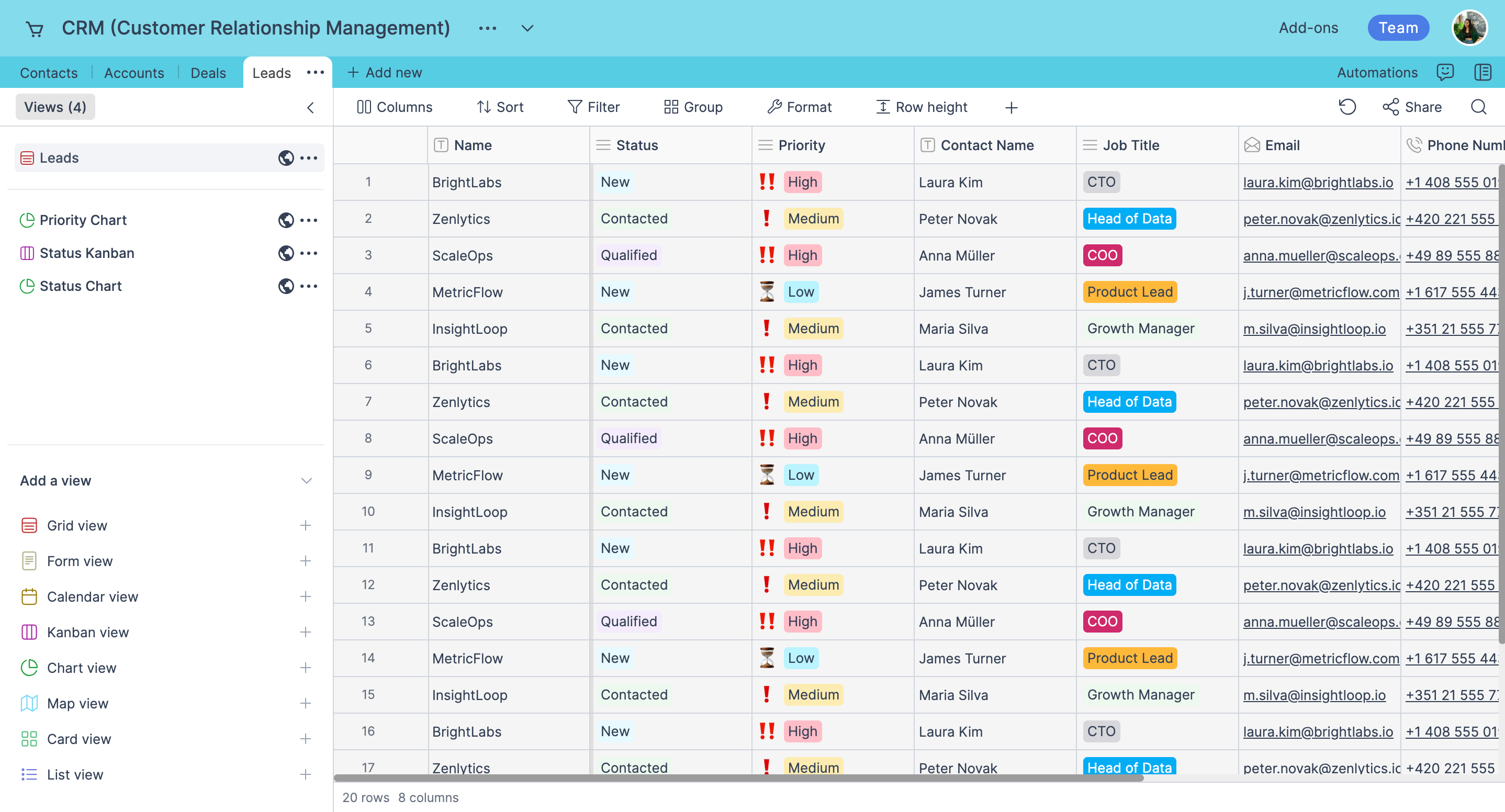
Columns of the leads table:
- Name: It's a single-line text column. This column indicates the name of the leads' company.
- Status: It's a select column type. It indicates the status of the leads. You can add more status options.
- Priority: It's a select column type. It indicates the priority of the leads. You can add more priority options.
- Contact name: It's a single-line text column. This column indicates the full name of the leads.
- Job title: It's a select column type. It indicates the job title of the leads. You can add more status options.
- E-mail: It's an email column type. The emails you write in this column are clickable. So when you click, your email provider opens and you can easily send emails.
- Phone number: It's a phone number column type. This column indicates the phone numbers of the leads.
- Lead source: It's a select column type. It indicates the source of the leads. You can add more source options.


.avif)